Using the Properties grid in Tabular Editor
The Properties view in Tabular Editor allows you to inspect and modify the properties of any object in your tabular model. You access the properties view by selecting an object in the TOM Explorer. You will then see a list of properties that are relevant for the selected object type, such as name, description, data type, format string, etc. You can also access advanced properties that are not available in other tools like Visual Studio or Power BI Desktop.
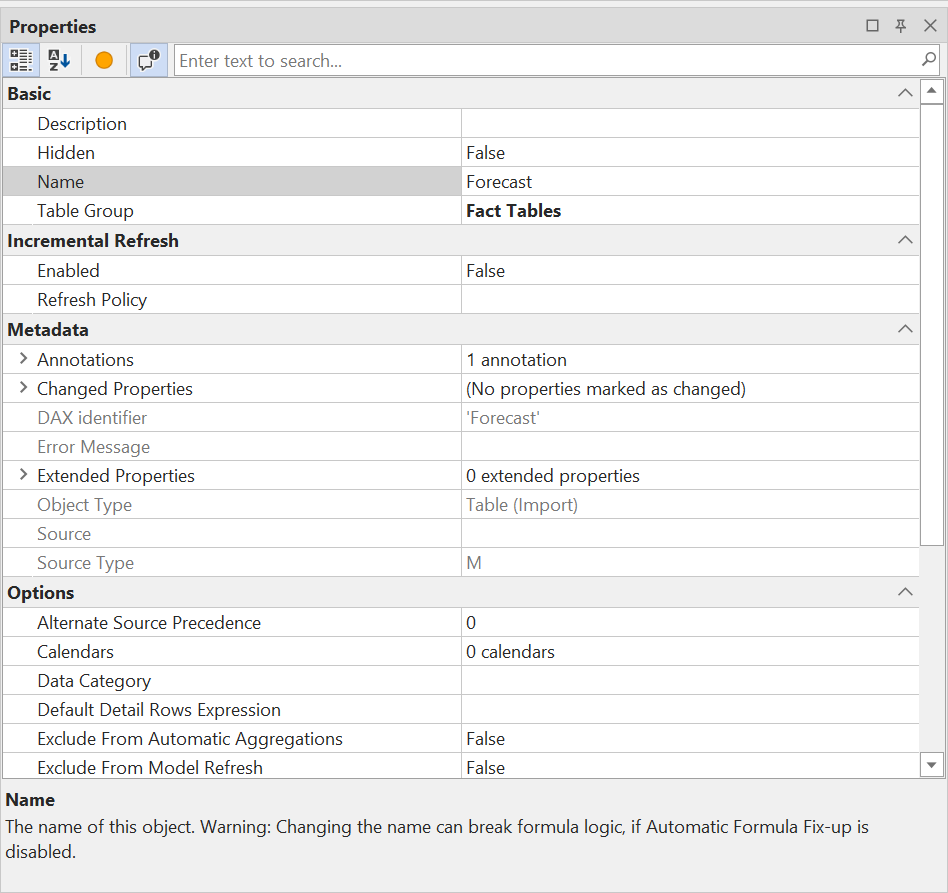
The Properties view helps you to:
- View and modify the properties of any object in the model, such as tables, columns, measures, hierarchies, relationships, partitions, roles and perspectives.
- Filter and sort the properties by name or category using the search box and the buttons at the top of the view.
- Copy and paste property values between different objects using Ctrl+C and Ctrl+V shortcuts.
- Undo and redo property changes using Ctrl+Z and Ctrl+Y shortcuts.
- You can use keyboard shortcuts to quickly navigate and edit your properties. For example, you can press Ctrl+Up or Ctrl+Down to move between different properties; press Enter or F2 to edit a property value; press Esc to cancel editing; press Ctrl+S to save changes;
Tip
You can multi-select objects to see the properties they have in common and edit them in bulk. This can be useful for setting Format Strings, for example.
Toolbar
The toolbar at the top of the Properties view contains the following buttons:
- Categorized: Groups the properties into categories such as Basic, Metadata and Options.
- Alphabetical: Lists all properties in a single, alphabetically sorted list.
- Show changes: Hides all properties that have not changed since the model was last saved, so that only the properties with unsaved changes remain. While the filter is active, the title of the view reads Properties (Changed).
- Show help: Shows or hides the description pane at the bottom of the view, which explains the currently selected property.
- Search box: Filters the list of properties by name.
Unsaved changes
Properties that differ from the last saved version of the model are drawn with a light orange row background. When several objects are selected, a row is marked if any of the selected objects changed that property.
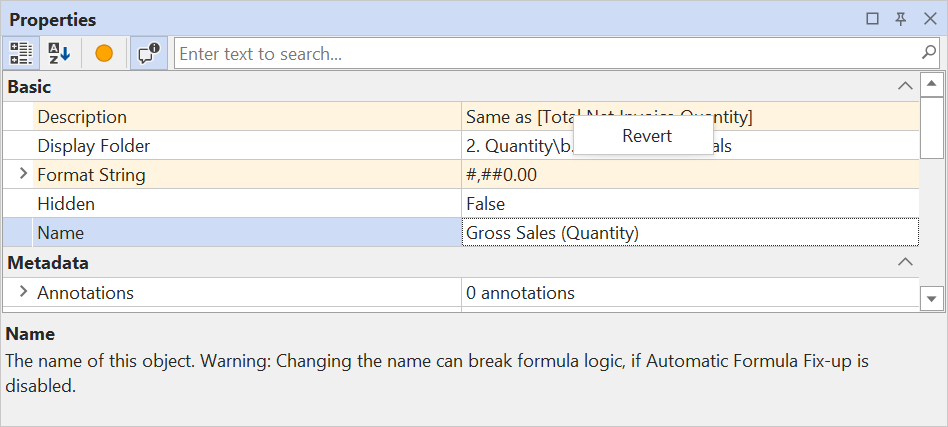
Right-click a marked row and choose Revert to put that property back to the value it had at the last save, without touching any other unsaved changes. The revert is a single step on the undo stack, so Ctrl+Z brings the change back. See Unsaved change indicators for details, including how to revert whole objects from the TOM Explorer, and how to turn the indicators off under Tools > Preferences.
Docking
The Properties view is by default in the bottom right corner, but you can also open it by pressing F4 on your keyboard. You can also dock it to any side of the main window or undock it as a separate window.