Unsaved change indicators
Starting with version 3.27.0, Tabular Editor 3 marks every object and property that differs from the last saved version of the model. Changes are marked whether they were made by hand, by a C# script or macro, or by the AI Assistant, and the marks disappear the moment the change is saved, reverted or undone.
The indicators appear in two places:
- In the TOM Explorer, changed objects get a tinted row and a badge on their icon, in the same colors as the model comparison view shown when deploying: orange for edited objects, green for added objects and red for deleted objects. Deleted objects stay visible, struck through, where they used to be, and the tables and folders that contain changed objects get a hatched fill.
- In the Properties view, properties that differ from the saved model get an orange tinted row.
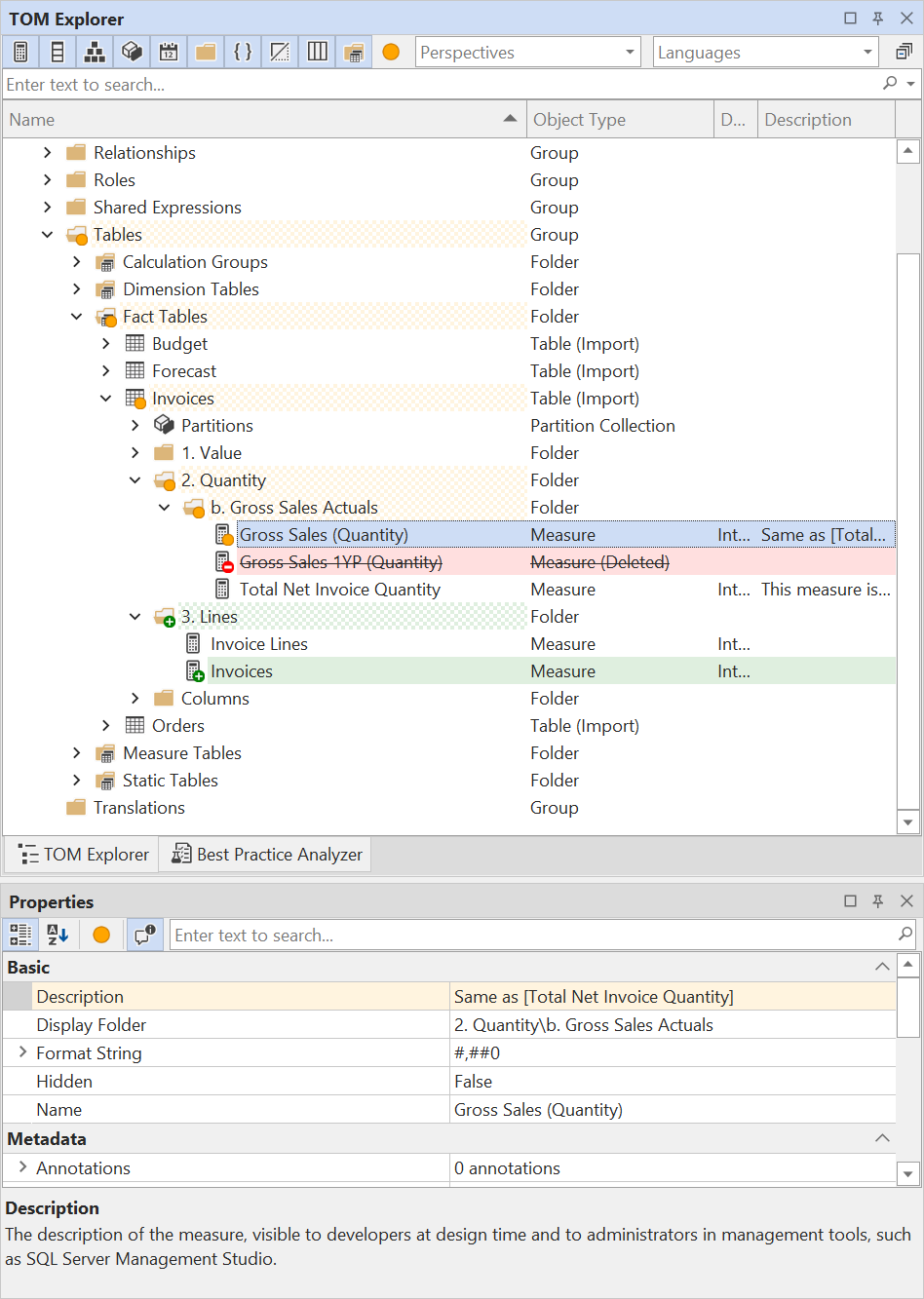
Both views have a Show changes toolbar button that filters the view down to what has changed, and both views offer a right-click Revert option that puts a single property, a single object or a whole branch of the model back to its saved state, without touching any other unsaved changes.
Note
The indicators track changes relative to the source the model was loaded from or last saved to. Deploying the model to a different database does not clear them, since the loaded model still differs from its own source.
Change indicators in the TOM Explorer
Each object in the tree is tinted and badged according to what happened to it since the last save:
- Edited objects get a light orange row and an orange dot badge on their icon. This covers any modified property, including changes to a sub-object that has no node of its own in the tree, such as a table's refresh policy or a column's Alternate Of settings.
- Added objects get a light green row and a green + badge. A new table and all of its new columns are green. Editing a property of a newly added object keeps it green, since the object is still new compared to the saved model.
- Deleted objects get a light red row and a red − badge, and their name is struck through. See Deleted objects below.
Tables, display folders, table groups and the Model node are marked too, when something beneath them has changed: their row gets a hatched fill and their icon gets the badge of the change beneath them. Green when only objects were added, and orange otherwise. This lets you follow the changes down through a collapsed tree, or use the Show changes filter to see only the changed objects.
When an object is selected, the normal selection highlight takes precedence over the tint, so a multi-selection stays readable. The badge on the icon still marks the changed objects within the selection. Error and warning badges also take precedence over the change badge, so an object with a semantic error keeps its error badge even when it has unsaved changes.
Tip
If green and red rows are hard to tell apart, enable Color blindness mode under Tools > Preferences > User Interface > Accessibility. Added objects are then marked in teal instead of green, both here and in the model comparison view.
Show changes
The Show changes button on the TOM Explorer toolbar filters the tree down to objects with unsaved changes, together with the tables, folders and groups needed to reach them. While the filter is active, the title of the view reads TOM Explorer (Changed).
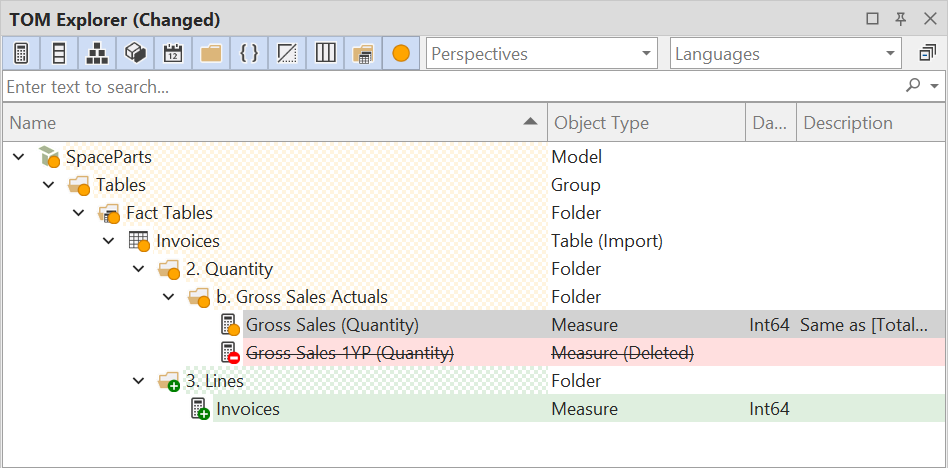
The filter is applied together with the other toolbar toggles and the search box. For example, hiding columns with Ctrl+2 also hides changed columns from the filtered view.
Change indicators in the Properties view
When you select a changed object, the properties that differ from the saved model are drawn with the same light orange tint. A collapsed row that holds a sub-object, such as a measure's KPI row or a table's Refresh Policy row, is marked when anything inside the sub-object has changed. For indexed rows such as Annotations, only the individual annotation that changed is marked.
When several objects are selected, a property row is marked if any of the selected objects changed that property.
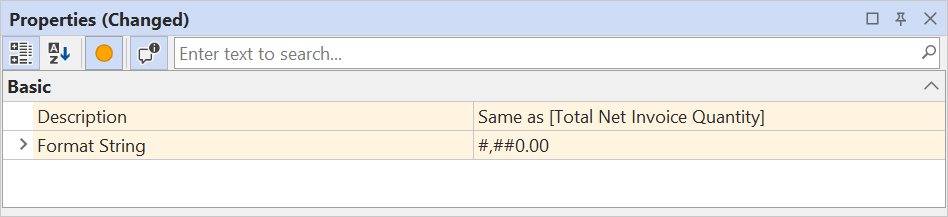
The Show changes button on the Properties view toolbar hides all unchanged rows, so that only the changed properties remain. While the filter is active, the title of the view reads Properties (Changed).
Reverting changes
Tabular Editor 3 has always been able to discard all unsaved changes at once, through File > Revert, which reloads the model metadata from its source. The new Revert options let you undo individual changes instead, while leaving all other unsaved changes in place.
A revert behaves exactly like typing the old value back in, or recreating the deleted object by hand: DAX references are fixed up, dependent objects are recalculated, and the whole revert becomes a single step on the undo stack. If you change your mind, one Edit > Undo (Ctrl+Z) brings the reverted change back.
Reverting a single property
Right-click a marked row in the Properties view and choose Revert to put that property back to the value it had at the last save. Every other unsaved change on the object stays in place.
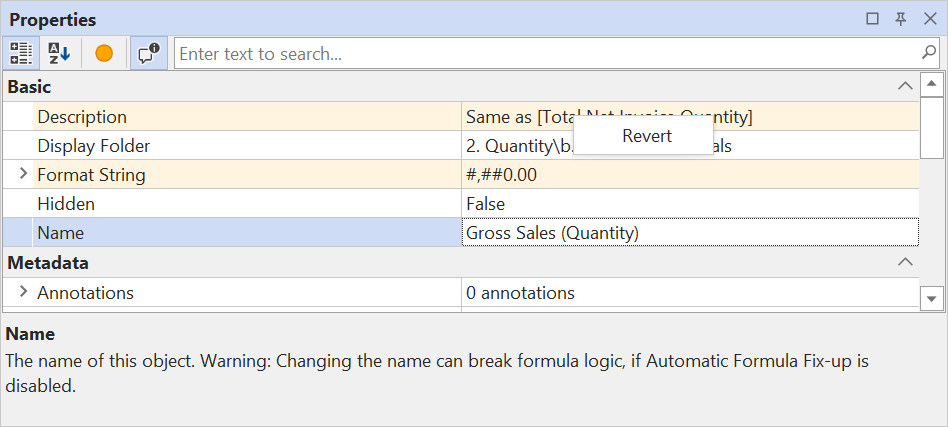
The Revert option is only enabled on rows that have unsaved changes. With several objects selected, Revert on a merged row reverts the property on all the selected objects that changed it, as a single undoable step. Revert on a container row such as Annotations reverts all the annotations at once: edited annotations return to their saved values, added annotations are removed and deleted annotations come back.
Reverting an object or a branch of the model
Right-click a marked object in the TOM Explorer and choose Revert to return the object, and everything beneath it, to the way it was at the last save. Revert is also available on tables, display folders, table groups and the Model node, even though these are not marked themselves, as long as something beneath them has changed. Choosing Revert on the Model node discards every unsaved change in the model, as a single undoable step.
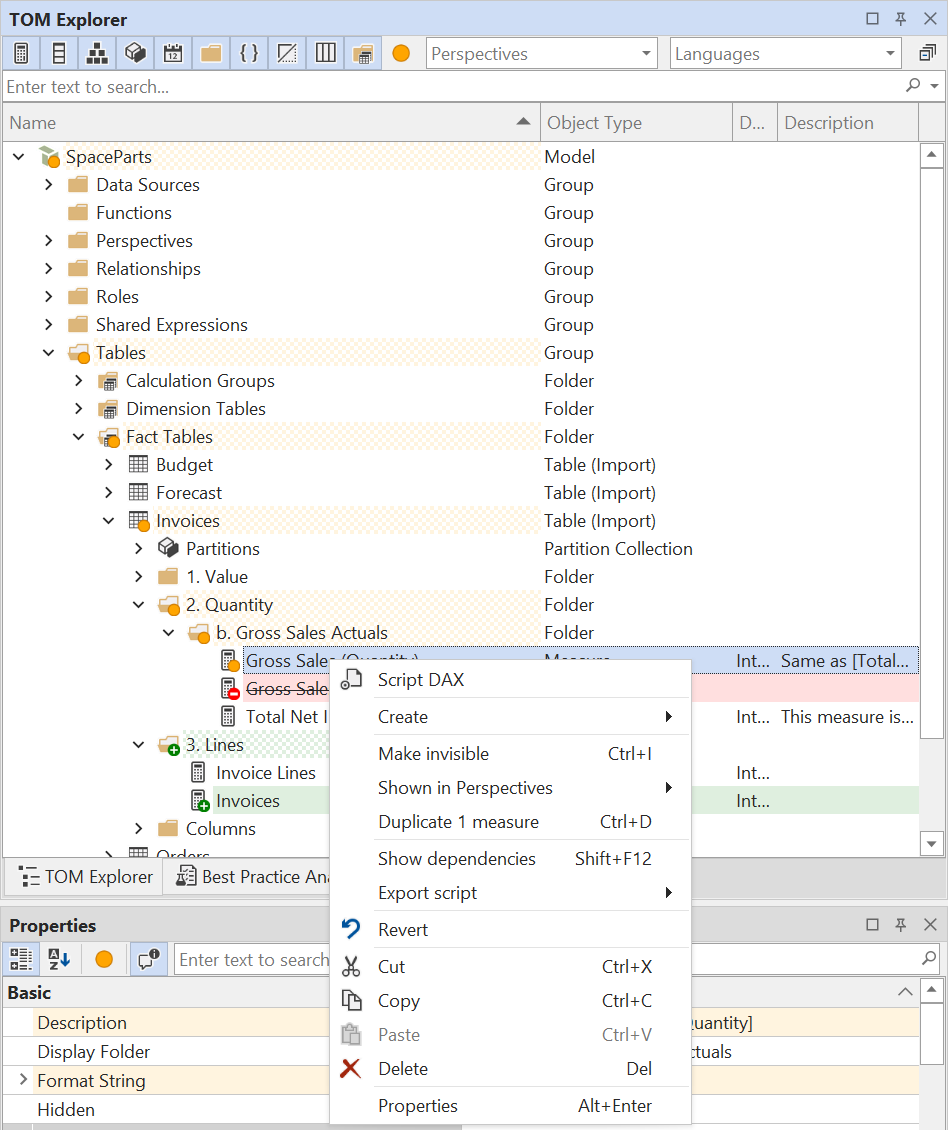
When reverting an object or a branch:
- Edited properties return to their saved values.
- Objects added since the last save are removed.
- Objects deleted since the last save come back exactly as they were saved, including a deleted measure's KPI, or a deleted column's hierarchy levels and relationships.
- Objects elsewhere in the model keep their unsaved changes.
Anything that cannot be put back is listed in a Revert incomplete message, and the rest of the revert stands. This happens, for example, when a deleted object's name has since been given to a new object that cannot be removed.
Deleted objects
When you delete an object, it no longer vanishes from the TOM Explorer right away. Until the model is saved, the object stays where it was, struck through on a light red row, with a red − badge on its icon. When the info columns are shown, the Object Type column reads for example Measure (Deleted). This makes a deletion as easy to spot as an edit.
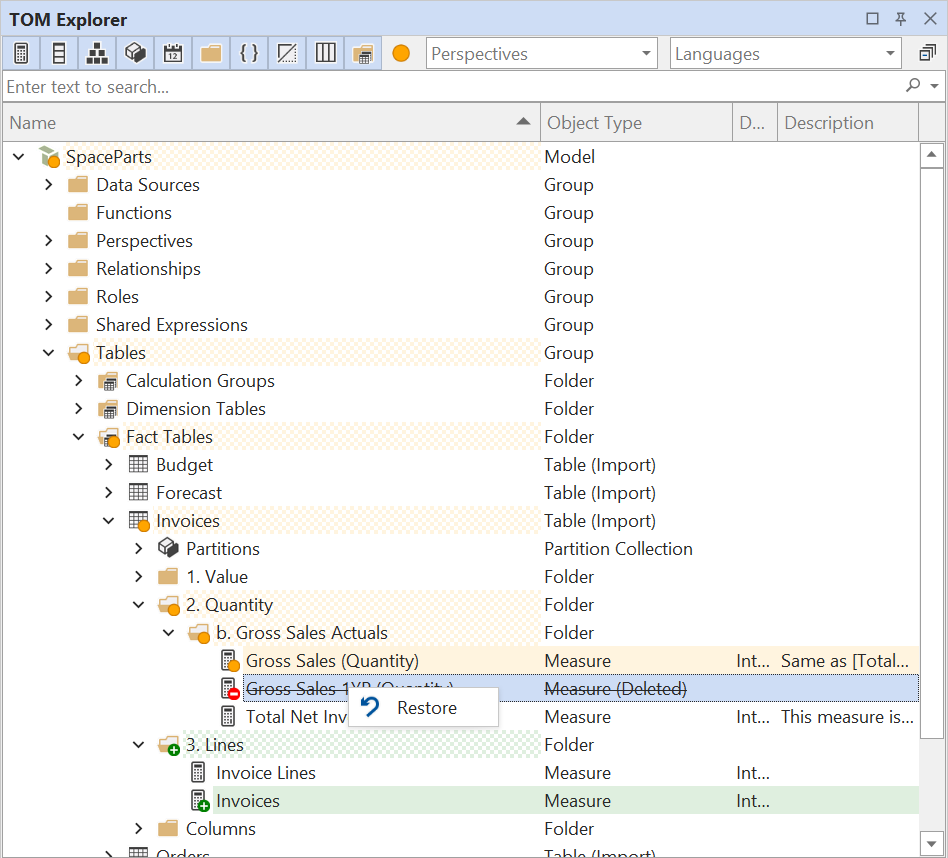
Right-click a deleted object and choose Restore to bring it back exactly as it was the moment before it was deleted. If the object had unsaved edits before it was deleted, these come back with it and remain marked, so that they can be reverted separately. You can multi-select several deleted objects and restore them in one step.
Deleted objects are placeholders, not model objects:
- They cannot be edited, renamed, dragged or expanded, and they are never included in a drag-and-drop or paste target.
- Selecting them does not select a model object. The Properties view shows nothing, and the right-click menu offers Restore only.
- A selection that mixes deleted and live objects offers neither Restore nor the normal object actions.
- They disappear as soon as the model is saved.
C# scripts can reach the selected deleted objects through Selected.Deleted. See Scripting below.
Gathering deleted objects under one node
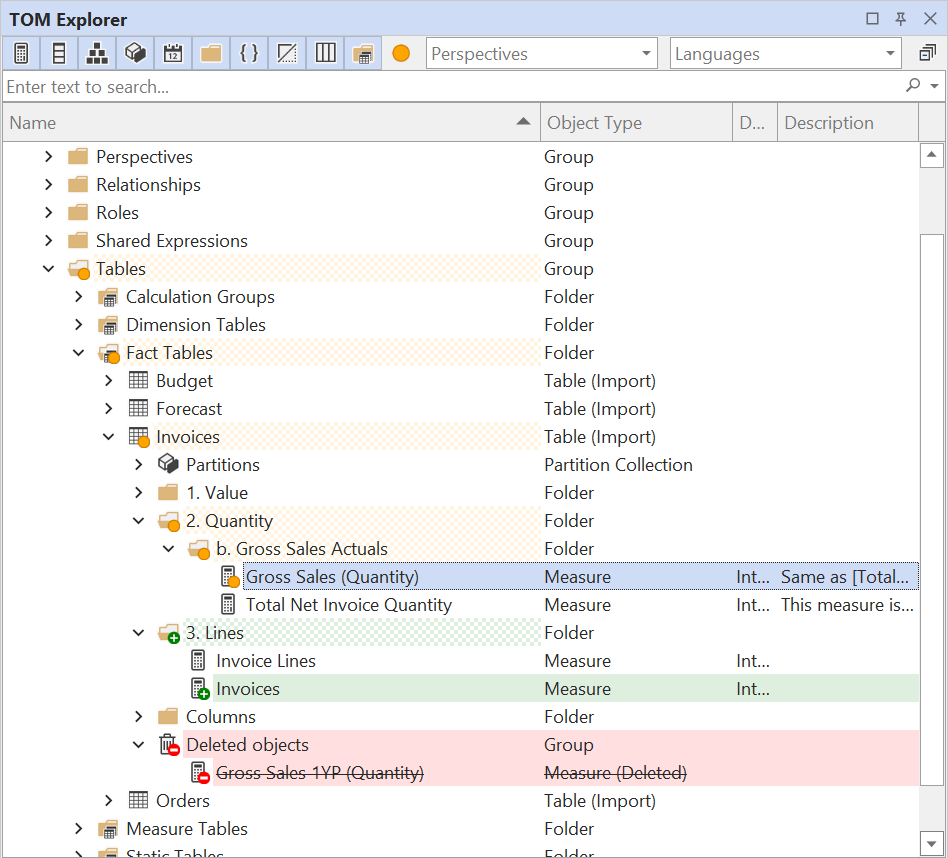
If you prefer not to have deleted objects mixed in with live ones, check Gather deleted objects under a "Deleted objects" node under Tools > Preferences > TOM Explorer > Unsaved changes. The deleted objects of a table, hierarchy, role or table group are then shown together under a single Deleted objects node at the end of their container, regardless of the display folders they used to be in. The node takes the red highlight and a trash-can icon, and the objects beneath it are struck through. Right-click the node and choose Restore to bring back everything beneath it in one step.
Keeping deleted objects across saves
By default, deleted objects stay visible until the model is saved, since they are unsaved changes like any other. The Keep deleted objects visible preference offers two alternatives:
- Never: Deleted objects vanish from the TOM Explorer at once, as in earlier versions of Tabular Editor 3. They can still be brought back with Revert on their container, or with Edit > Undo.
- Until the model is closed: Deleted objects stay visible for the whole editing session, even across saves, and remain restorable. Restoring an object that was deleted before the last save creates it anew, so it is then marked as an added object. Objects that were created and deleted between two saves are kept only if they were edited or saved at some point. An object that was created and deleted without ever being touched leaves no trace.
When indicators clear
An object or property loses its mark when it no longer differs from the last saved state of the model. This happens when:
- The model is saved, whether to a file, a folder or a database. Every indicator clears at once.
- The change is reverted, either through Revert in the TOM Explorer or Properties view, or through File > Revert.
- The change is undone with Edit > Undo back to the point of the last save. Redoing the change brings the mark back, and undoing past the last save marks the rolled-back objects instead.
- A property is set back to its original value by hand. Tabular Editor 3 compares the current value with the saved one, so a net-zero edit does not count as a change.
Preferences
The indicators can be adjusted under Tools > Preferences > TOM Explorer, in the Unsaved changes section:
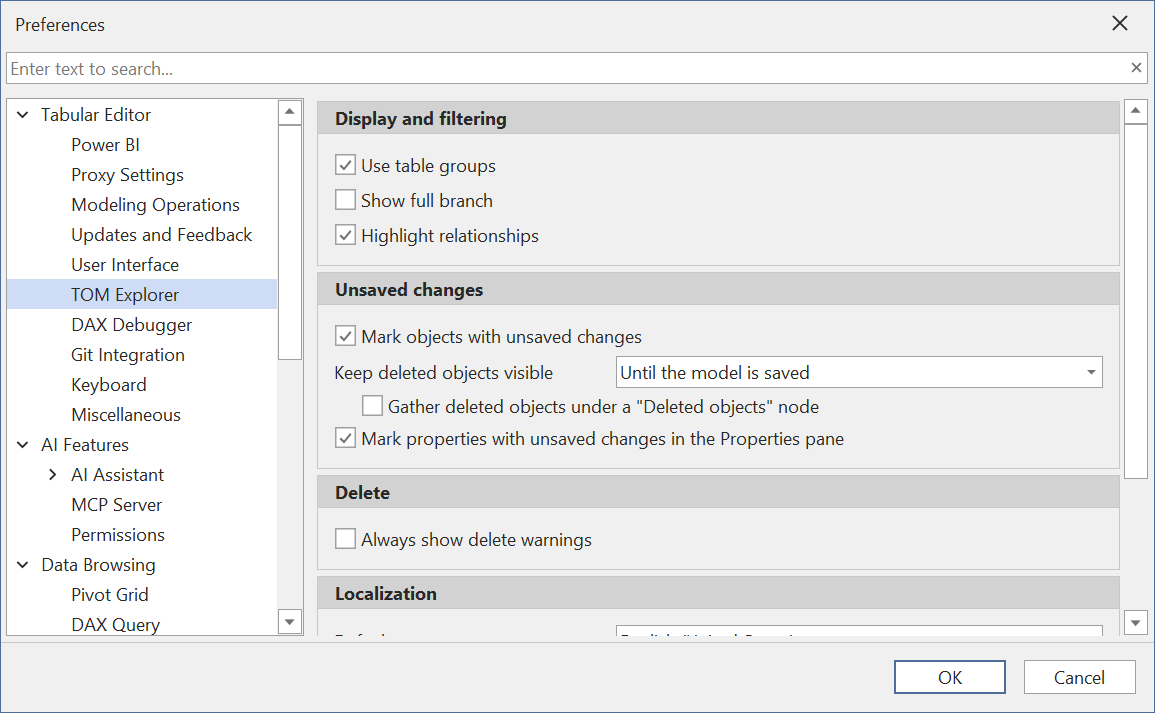
- Mark objects with unsaved changes (enabled): Tint the rows and badge the icons of added, edited and deleted objects in the TOM Explorer, and mark their containers with a hatched fill. When unchecked, deleted objects still stay visible and the Show changes filter still works.
- Keep deleted objects visible (Until the model is saved): How long deleted objects stay in the TOM Explorer. See Keeping deleted objects across saves.
- Gather deleted objects under a "Deleted objects" node (disabled): Show a container's deleted objects together under one node instead of each where it used to be. See Gathering deleted objects under one node.
- Mark properties with unsaved changes in the Properties pane (enabled): Tint the rows of changed properties in the Properties view. When unchecked, the Show changes filter in the Properties view still works.
See Controlling preferences for the other settings on this page. The colors used for added objects can be adjusted for color blindness under Tools > Preferences > User Interface > Accessibility.
Scripting
The same information and operations are available to C# scripts and macros, which lets a script inspect what has changed and roll back part of a model without touching the rest.
Every model object exposes the following members:
HasUnsavedChangesreturnstruewhen the object, or anything beneath it, differs from the last saved state. On theModelobject, this tells whether the model has unsaved changes at all.Revert()puts the object and everything beneath it back to the saved state, as one undoable step. The same method exists on collections such asSelected.Measures, and onModelfor the whole model. An exception listing what could not be put back is thrown when part of the revert fails.Revert("PropertyName")reverts a single property to its saved value, for exampleRevert("Expression")orRevert("Annotations[MyAnnotation]"). It does nothing when the property is unchanged.
Containers such as tables, hierarchies and roles expose a DeletedObjects collection listing the objects deleted from them in the current session. Each entry has a Name, ObjectType and Parent, and a Restore() method. Calling Restore() on the collection restores all of them at once.
In the TOM Explorer, deleted objects that are currently selected are available through Selected.Deleted. Since deleted objects are not model objects, they never appear in Selected.Measures, Selected.Columns and the other accessors.
// List the measures with unsaved changes in the selected tables:
Selected.Tables
    .SelectMany(t => t.Measures)
    .Where(m => m.HasUnsavedChanges)
    .Output();

// Revert only the format strings of the selected measures, keeping their other edits:
Selected.Measures.Revert("FormatString");

// Put an entire table back to its saved state:
Model.Tables["Sales"].Revert();

// Bring back everything that was deleted from the selected table:
Selected.Table.DeletedObjects.Restore();

// Restore the deleted objects currently selected in the TOM Explorer:
Selected.Deleted.Restore();