Save to folder
Save to Folder allows you to store your model metadata as individual files, which can be easily managed by version control systems. Instead of having a single file (.bim or .pbix) that contains all the objects of your data model, such as tables, measures, relationships, etc., you can split them into separate files and store them in a folder. This way, you can use source control tools to track the changes, compare versions, and collaborate with other developers on your data model.
Note
You can save your data model to a folder using two different formats: JSON or TMDL.
To save your model to folder, follow these steps:
- Click on File > Save To Folder
- Choose a folder where you want to save your model files.
- Click on Save. Tabular Editor will create or update the files in the selected folder, using the JSON or TMDL format as specified in the serialization settings.
- You can now use the files in the folder for version control, deployment, or backup purposes.
Serialization settings
The serialization settings defines how the model objects are split into separate files. In these settings you can also define if you wish to use JSON or TMDL formats.
Serialization settings are found under File > Preferences > Serialization
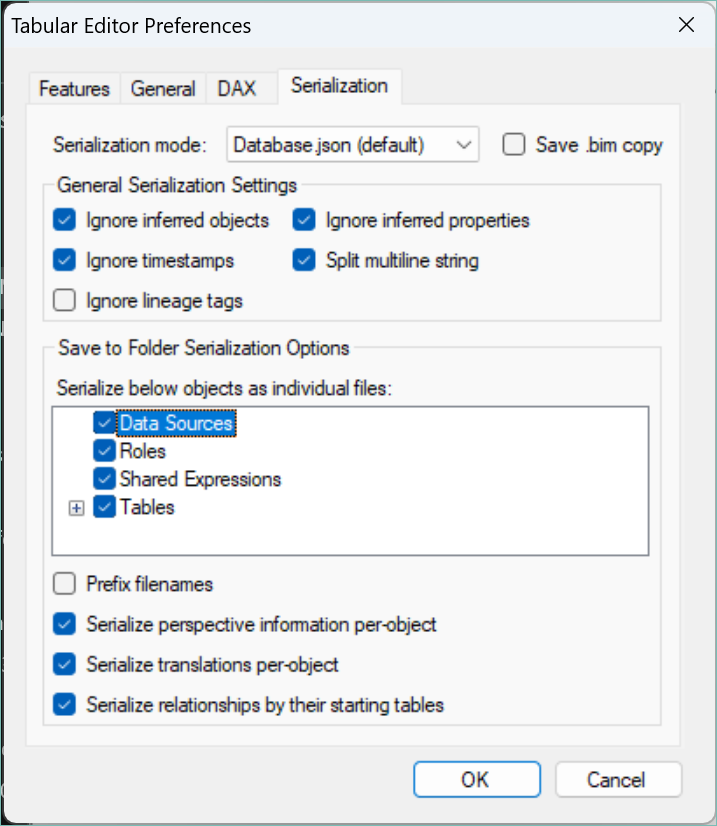
The settings shown above are those set as default when using Tabular Editor 3, but are not those that are set per default by Tabular Editor 2.X
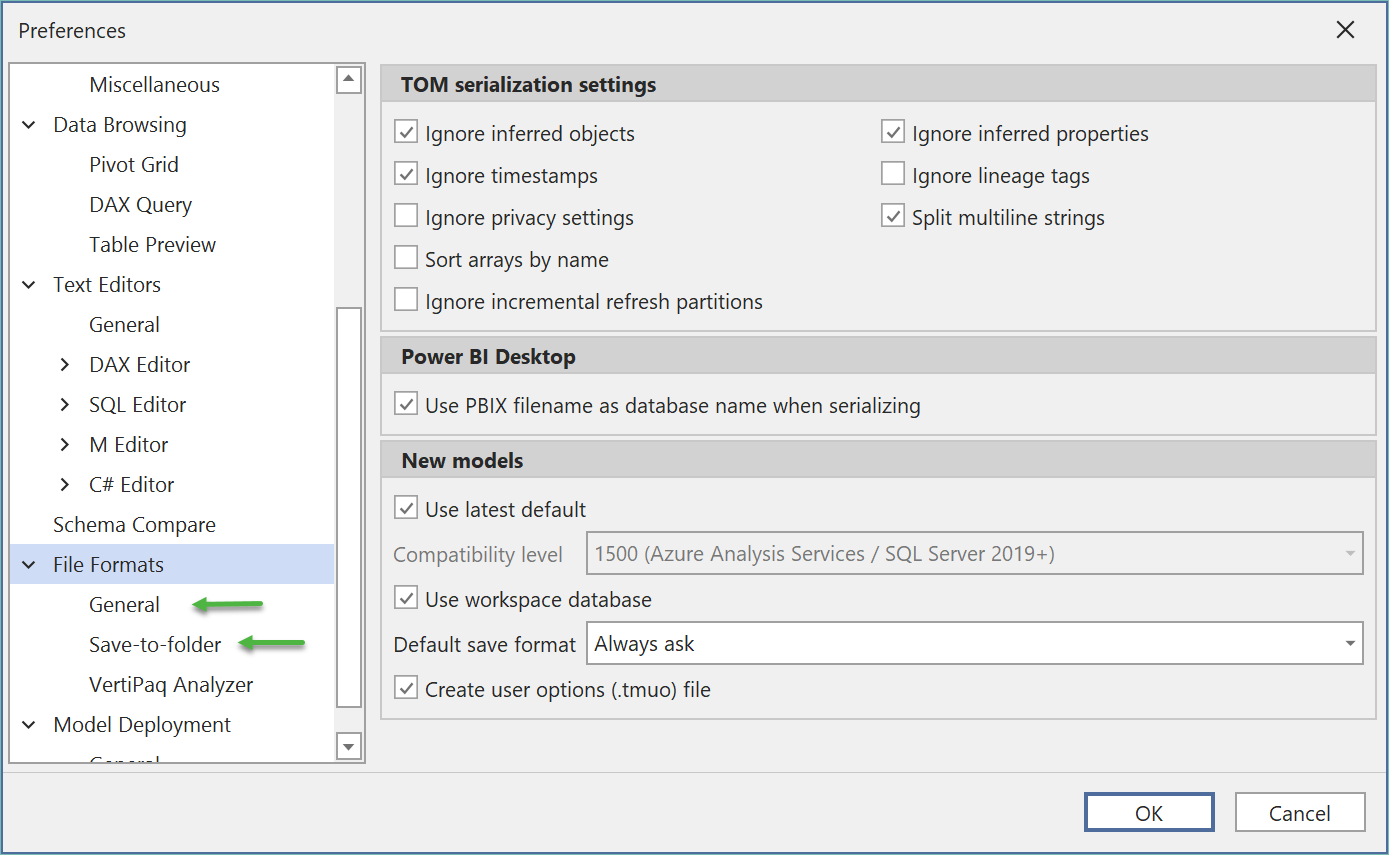
User Defined Functions (UDFs)
Since Tabular Editor 3.27.0, the JSON folder format can store each DAX User-Defined Function in its own file, the same way it already does for tables, measures and columns. The functions go in a functions subfolder at the model root:
MyModel/
├── database.json
├── functions/
│   ├── Sales.MarginPct.json
│   └── Time.SameDayLastYear.json
├── tables/
└── ...
The benefit is the same as for every other object type: two developers editing two different functions change two different files, so Git has nothing to merge. Without it every function lives inline in database.json, and any two parallel edits collide in that one file.
Turn it on with the User Defined Functions (UDFs) level, under Tools > Preferences > File Formats > Save-to-folder or, for the model you have open, under Model > Serialization options....
![Placeholder: Screenshot of the Model > Serialization options dialog, with the User Defined Functions (UDFs) level ticked]
Important
Tabular Editor selects this level by default only for a model you save to a folder for the first time. A model that's already folder-serialized keeps the levels stored in its own serialization annotation, so its functions stay inline until you select User Defined Functions (UDFs) under Model > Serialization options... and save the model again.
Serialization Model Annotation
Tabular Editor saves the serialization settings on your model so that they will always stay the same no matter who is working on the model. This ensures that a developer's local preferences do not overwrite model's setting and lead to an unmanageable merge in your source control. You can find these annotations in the TOM Explorer properties of the Model > Annotations > TabularEditor_SerializeOptions
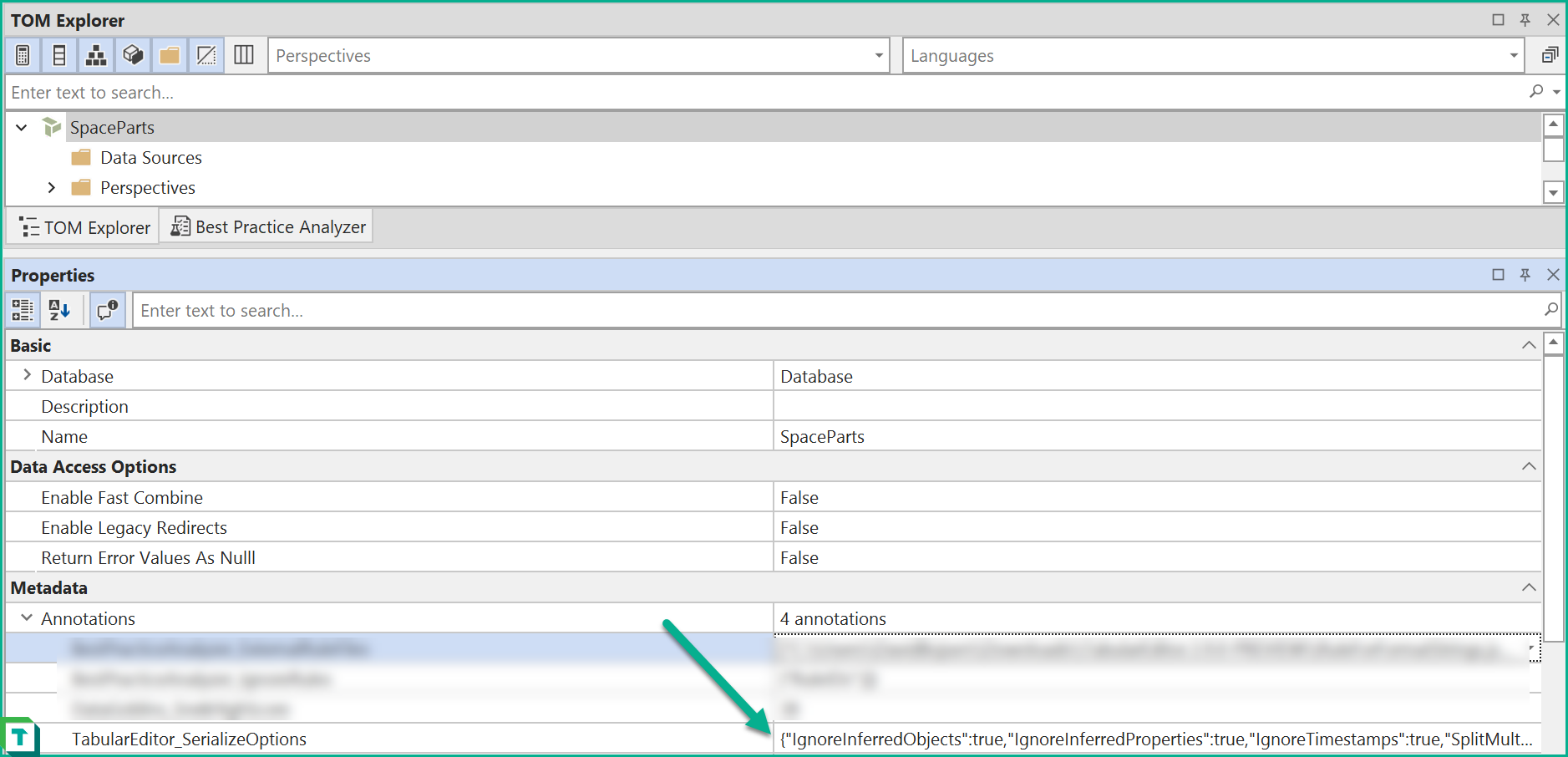
Overwriting Model Serialization
The model's annotation can be overwritten if so desired. First set up the serialization preferences inside Tabular Editor and go to File > Save to Folder.
This open up Windows Explorer and here the ticket button needs to be unselected.
