Staying in sync with files on disk
While you work, two copies of your model exist: the one Tabular Editor holds in memory, and the metadata files on disk it was loaded from. Anything that edits one without the other pulls them apart.
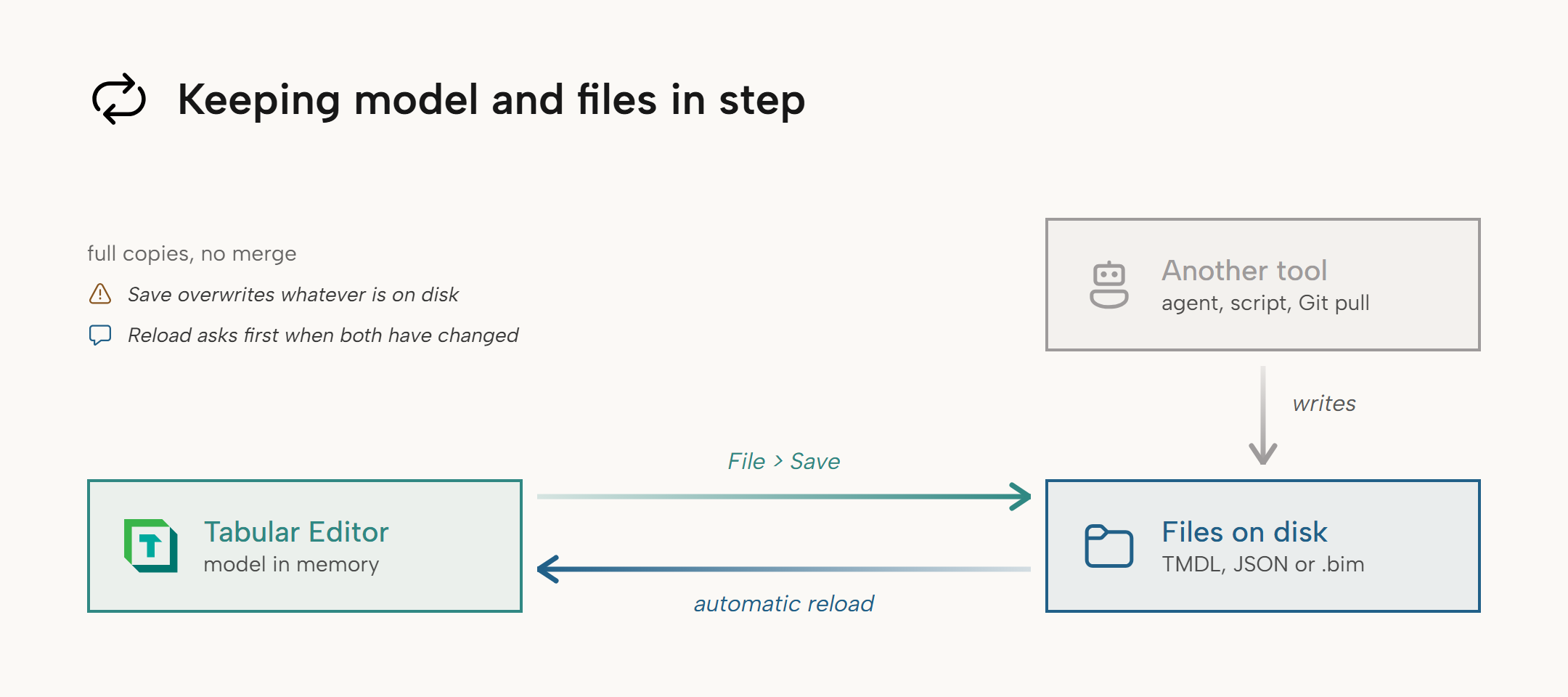
Tabular Editor keeps the two together in both directions:
| Direction | What moves it |
|---|---|
| Memory to disk | File > Save (Ctrl+S), whenever you choose. |
| Disk to memory | Automatic, since Tabular Editor watches the files and reloads the model when something else changes them. |
The other tool is usually an AI agent or a script, but it can equally be another editor, a git pull or a colleague working in a shared folder.
Note
This is file-level synchronization. It is not the same as Track external model changes and Refresh local Tabular Object Model metadata automatically, which sit next to it under Tools > Preferences > Miscellaneous but start an Analysis Services trace to detect changes made to a connected database. The two mechanisms are independent and cover different sources of change.
What Tabular Editor watches
| Model loaded from | Watched |
|---|---|
A .bim file |
That one file. Other files in the same folder are ignored. |
| A folder in the JSON (Database.json) format | Every .json file below the model root, including subfolders. |
| A folder in the Tabular Model Definition Language (TMDL) format | Every .tmdl file below the model root, including subfolders. |
| A workspace database | The files backing the model in workspace mode, watched by the same rules as the two rows above. |
| A database or Power BI Desktop, outside workspace mode | Nothing. The model has no files on disk, so there are no two copies to reconcile. |
A .pbit template, or a model you've never saved |
Nothing. A .pbit is a binary file that no external tool edits in place. |
When only the files changed
If you have no unsaved changes, only one copy moved, so there's nothing to weigh up. Tabular Editor reloads the model and the two are in step again.
When both copies changed
If you have unsaved changes as well, both copies moved and they disagree. Tabular Editor can't merge model metadata, so it asks you which copy wins.
![Placeholder: Screenshot of the External changes detected prompt, showing the Reload and Ignore buttons]
- Reload discards your unsaved changes and takes the version on disk.
- Ignore keeps your changes and leaves the model as it is. The files on disk aren't touched, so the two copies stay apart until your next save overwrites them.
Ignore is the safe default. Pressing Esc, or closing the prompt with its window button, keeps your changes exactly as Ignore does.
Warning
If you choose Reload, Tabular Editor discards your unsaved changes without a further confirmation, and you can't undo the reload.
A typical sequence
- You open a TMDL folder model and rename a measure. The copy in memory has moved ahead of the files.
- An AI agent working in the same folder rewrites four
.tmdlfiles. Now both copies have moved, in different directions. - Tabular Editor waits for the agent's writes to settle, then raises one External changes detected prompt.
- You choose Reload. Your measure rename is gone, the agent's four files are loaded, the two copies are in step, and the TOM Explorer is still expanded to the table you were working in.
Had you chosen Ignore, your rename would have survived, the copies would have stayed apart, and the agent's four files would be overwritten the next time you pressed Ctrl+S.
Coalescing and background changes
A tool that rewrites a folder-serialized model touches many files in quick succession. Tabular Editor waits for the writes to settle and then reloads once, not once per file.
Changes that arrive while Tabular Editor is in the background are held rather than raised immediately. You're asked once when you switch back to Tabular Editor, so returning from an agent session that rewrote a dozen files gives you a single prompt.
Workspace mode
Workspace mode adds a third copy: the workspace database on the server. A reload redeploys it as well, so all three stay in step rather than leaving the server on metadata the files no longer describe.
Turning it off
The disk-to-memory direction is enabled by default. To make it manual again, clear Automatically revert from disk under Tools > Preferences > Miscellaneous.
![Placeholder: Screenshot of the Tools > Preferences > Miscellaneous page, showing the Automatically revert from disk checkbox]
Turn it off when the model folder is also written to by something that runs continuously, such as a file sync client or a CI checkout that refreshes in the background. The prompt is modal, so a folder that changes often interrupts you rather than helping you.
With the setting cleared, Tabular Editor watches nothing, and the two copies come back together only when you use File > Revert or File > Save.
See Preferences for the rest of the settings on that page.